You can remotely manage firmware and policies for Jabra personal and meeting room devices via the platform.
For Jabra personal devices: Firmware updates are performed through the Jabra Plus Desktop app. Admin users can select specific firmware versions for device models, applying them across inventories or device groups, as well as in exceptional cases, downgrading firmware. If a firmware update fails, a recovery process is available for wired devices via the app. End users receive prompts to update firmware based on organizational policies or can postpone them.
For Jabra meeting room devices: Firmware is managed directly on the platform, allowing updates or downgrades per organizational policies. Updates are pushed directly to the meeting room devices and follow a schedule for device updates. Without a defined schedule, updates may interrupt meetings, as devices must reboot.
Important note
Jabra may cease support for certain firmware versions due to compatibility issues, security vulnerabilities, or regulatory changes. When a previously selected firmware version becomes unsupported, the affected Jabra devices continue to operate normally. However, subsequent Jabra devices added to the respective inventories keep their existing firmware and cannot update to the unsupported version.
When a specific firmware version is no longer supported by Jabra, in the device inventory or room inventory an exclamation mark (!) indicates the affected Jabra devices. Additionally, a Configuration warning appears in the affected configuration or room configuration. For details, see the Troubleshooting section.
The end user may continue to use the Jabra device with the unsupported firmware; however, the Jabra device´s settings can no longer be changed, and it is therefore not recommended, as it may cause undesired behavior.
To resolve this, an admin user on the platform with the relevant permissions must edit the configuration to either select a different firmware version or switch the toggle to Always use latest ON, automatically updating the Jabra device to the latest firmware.
To select a different firmware version, see the procedure Modifying & setting the firmware policy for specific Jabra device models. If you have configurations assigned to a specific room or Jabra personal devices in a device group, see the Modifying & setting an existing firmware policy for a specific Room or device group procedure.
Firmware policy & updates#
The firmware policy — contained within Configurations — enables you to manage firmware for Jabra devices in the Jabra Plus Management platform, giving end users access to the latest updates and features for their Jabra device.
Note
Certain older Jabra devices’ firmware cannot be updated via Jabra Plus. Instead, they must be updated using Jabra Direct or Jabra Xpress.
You can still use the older Jabra devices in Jabra Plus and change settings, however, depending on the firmware version you are running, the list of settings that you can modify in Jabra Plus can change.
To find out whether your device can be firmware updated or not, see the list of supported Jabra devices.
Governed by a firmware policy, you can control and enforce firmware deployment of the latest firmware updates on all Jabra devices (in their organization) or set exceptions for specific Jabra device models, for example, preventing updates to all Jabra Evolve3 85 personal devices or restricting all PanaCast U30 to use a particular firmware version.
The default firmware policy is part of the Standard Configuration or Standard Room Configuration, as well as any customized configuration. The default firmware policy applies in both cases, however, the default works differently for Jabra meeting room and for personal devices.
Modifying the default firmware policy effectively creates a custom policy, but these cannot be named as they are contained within configurations.
Therefore, to have different firmware policies for various Jabra device models, an admin user must first create a configuration or create a room configuration and then modify the firmware policy accordingly.
For both Jabra meeting room and personal devices, a firmware policy consists of the following toggle switches:
- Update devices with Jabra Plus Management: primary toggle switch that enables or disables Jabra device firmware management on the platform
- Always keep devices updated: secondary toggle switch that updates all Jabra devices to the latest firmware version when available
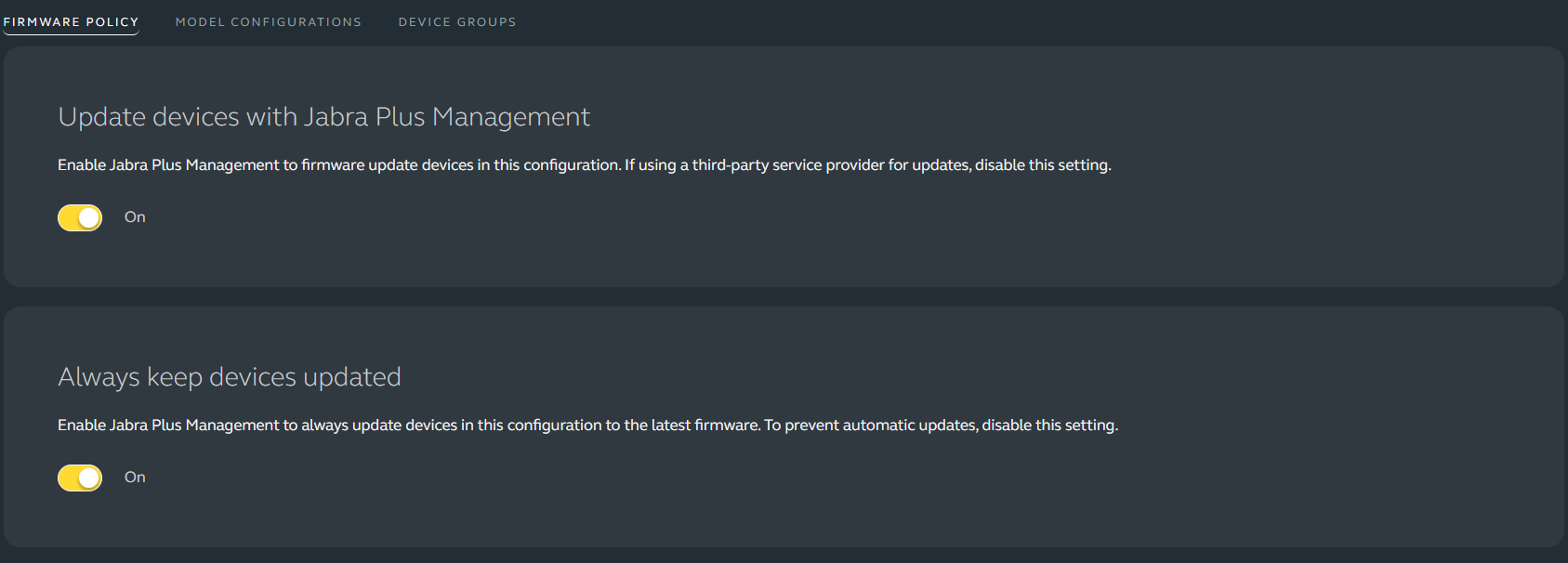
Also, the default firmware policy acts differently according to the type of Jabra device, and as follows:
- Personal devices: the default setting for both toggle switches is ON, which means firmware is managed automatically, and end users are notified of updates via Jabra Plus Desktop app. However, you can disable the firmware policy to prevent updates and keep the currently installed firmware version.
- Meeting room devices: the default setting for the firmware management toggle is OFF, meaning firmware is not managed through the platform. Consequently, updates are not automatically applied.
Note
When you enable firmware updates in the Jabra Plus Management platform, you must disable firmware updates from other platforms, such as Windows® Update.
This means whenever a Jabra meeting room device is added to the room inventory, you can manage the firmware exclusively within the platform.
You can modify & set the firmware policy for specific Jabra device models in the Standard Configuration for all personal devices in the device inventory. You can also set a specific firmware version for a Jabra meeting room device model in the Standard Room Configuration that is automatically assigned to all your meeting room devices in the room inventory.
Moreover, in any custom configuration that was saved and assigned to specific device groups, as well as any custom room configuration that was saved and assigned to specific rooms, you can modify & set a firmware policy for a specific room or device group. You can also restrict the Always use latest firmware feature only to a specific Jabra device model.
Both inventories show Firmware status for all rooms and personal devices. See the Firmware Statuses topic for guidance.
Firmware Statuses#
On the platform, the status of firmware updates is located within the device inventory or room inventory, and the statuses differ depending on personal or meeting room devices.
| Shown in Device or Room inventories | Description |
|---|---|
| Postponed update1 | The firmware update installation of the Jabra device has been delayed or postponed to a later time or date by the end user. |
| Failed update | The firmware update installation of the Jabra device has failed on the end user computer. The end user can recover the Jabra device and retry the firmware update. Depending on the error code, the failed update can retry the update on its own. |
| Pending update | Waiting for the end user to perform the firmware update. It can also occur if the Jabra device is Offline. |
| Latest installed | The installed firmware version being the most recent release, which includes the latest improvements, features and bug fixes. This message is also displayed when firmware management is disabled. |
| Update available1 | A new firmware version is available but has not yet been configured by you, the admin user. On the other hand, the end user is notified of an update to their Jabra device in the Jabra Plus Desktop app. Can also be shown when the Update devices with Jabra Plus Management Toggle is switched OFF. |
| Update scheduled2 | Specific date and time set in the Jabra Plus Management platform when the update takes place. See the Scheduled device updates topic. |
1 Jabra personal devices only
2 Jabra meeting room devices only
Enabling or disabling firmware management for Jabra devices#
In the Jabra Plus Management platform, you can remotely manage firmware for Jabra personal and meeting room devices, respectively.
Meeting room devices: The default firmware policy for meeting room devices applies automatically to the Standard Room Configuration and is switched OFF (disabled) by default.
To enable firmware management, you must first decide to Update devices with Jabra Plus Management (primary toggle switch) ON and then decide whether to switch ON the Always keep devices updated (secondary toggle switch) to update all Jabra meeting room devices to the latest firmware version when available.
Personal devices: For Jabra personal devices, the default firmware policy applies automatically to the Standard Configuration , which is switched ON (enabled) by default.
When enabled, firmware-related notifications are sent via Jabra Plus Desktop app to end users using Jabra personal devices. In the Jabra Plus Management platform, you can switch this OFF in the default firmware policy in the Standard Configuration, disabling firmware management in Jabra Plus Management across the board.
Tip
When you want to update the firmware of a Jabra meeting room or personal device model in their respective inventory, you can create a firmware policy that includes an exception for firmware in the Standard Configuration or assign a firmware policy to a specific room or device group.
For procedures, see the modifying & setting the firmware policy for specific Jabra device models or modifying & setting a firmware policy for a specific room or device group.
Although there may be a firmware policy in place for the organization´s Jabra personal and meeting room devices, the following requirements must be met before firmware updates can begin:
- The Jabra device must not be in an active call
- Your organization has a weekday and time set in the scheduled device updates for meeting room devices
- If using a wireless Jabra personal device, the battery must be charged at over 30 percent
During the firmware update, end users must keep their Jabra personal device connected and not adjust any settings until the firmware update process is complete.
If you or end users experience any issues while updating firmware, see the Recovering your Jabra personal device after a failed firmware update topic or Troubleshooting.
To enable or disable firmware management for meeting room or personal devices:
- On the left-hand navigation bar, click Meeting rooms > Room configurations
- For personal devices, click Personal devices > Configurations
- On the Room configurations page, click the Standard Room pane
- For personal devices, click the Standard Configuration pane
- On the Standard Room page, in the Firmware Policy tab, in the Update devices with Jabra Plus Management pane, you can toggle the switch ON, to enable firmware management within the platform. When you switch it OFF, you manage firmware through a third-party service provider
- In the Always keep devices updated pane, you can toggle the switch ON to always use the latest firmware for all Jabra meeting room devices in the room inventory. When you switch it OFF, all Jabra meeting room devices continue using their current firmware version
- For personal devices, in the Firmware Policy tab, in the Update devices with Jabra Plus Management pane, you can toggle the switch OFF to disable firmware management in Jabra Plus Management. When you switch it OFF, you cannot manage firmware for Jabra personal devices, and all Jabra personal devices continue using their current firmware version
- For both personal and meeting room devices, on the bottom ribbon, click Publish Changes and confirm
The firmware policy applies when the end user restarts their computer with the connected Jabra personal device. For meeting room devices, the firmware policy changes are applied immediately, but the firmware updates are performed following the schedule for device updates.
Scheduled device updates for meeting room devices#
Jabra meeting room devices are an integral part of your organization´s meeting rooms, and to keep meeting room devices updated with the latest features, they may require regularly scheduled downtime to implement firmware updates.
As updates are made available by Jabra, a defined maintenance window for your Jabra meeting room devices lets you perform them without interrupting end users.
Scheduled device updates enable you to choose a day of the week at a specific one-hour time interval, whereby the Jabra meeting room devices are temporarily unavailable as their firmware is updated. With a weekly recurring schedule, firmware policy changes made in room configurations only take effect during the defined maintenance window.
As a default schedule, all Jabra meeting room devices in your organization’s room inventory perform available firmware updates between 00:00 and 01:00 (24-hour time format) Monday through Friday.
Note
Currently, for meeting room devices, firmware management is turned OFF by default. To switch it ON, see the Enabling or disabling firmware management for Jabra meeting room and personal devices topic.
This default schedule cascades to all locations and follows the local time zone of the Jabra meeting room device. You can use the default schedule or set a custom weekly schedule for the entire organization.
Note
For Jabra meeting room devices to follow the schedule, they must have a time zone that was set during provisioning.
PanaCast U30, PanaCast 40/50/55 VBS, and PanaCast 50 BYOD: If the time zone was incorrectly set or the meeting room device was moved to a location with a different time zone, you must re-provision the device(s)
PanaCast 50 RS: To set the correct time zone, an admin user must change the Windows® settings for the time zone on the meeting room computer/ThinkSmart™ Core, included in the bundle
Firmware updates take place when following your organization’s firmware policy, which governs whether you can update the firmware of Jabra meeting room devices and keep them regularly updated to the latest firmware version.
Unless you have a defined schedule for when updates can be installed, end users may be interrupted during their online meetings. This is due to meeting room devices having to reboot to have the updates applied.
Therefore, updating the firmware of meeting room devices only occurs during the time previously set in the maintenance schedule. If you experience any issues while updating your firmware, see the Troubleshooting section.
Defining a custom schedule for meeting room device firmware updates#
Defining and setting a custom schedule for device firmware updates ensures that Jabra meeting room device downtime in your entire organization only occurs during non-office hours.
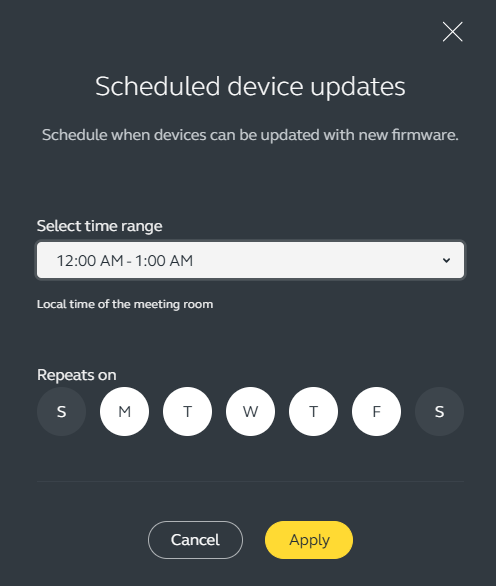
This is based on the local time zone of the device’s physical location, therefore minimizing potential interruptions for end users.
Note
Be aware that the custom schedule that you defined and set overwrites the default schedule for all Jabra meeting room device updates in the organization.
To do this:
On the left-hand navigation bar, click Meeting rooms > Room inventory
On the left-hand Locations bar, at the top of the list, click the action menu (three-dot menu) next to the name of the organization, and click Scheduled device updates
In the Scheduled device updates dialog, on the Select time range drop-down menu, choose a timeframe
In the Scheduled device updates dialog, in the Repeats on section, check or click to select at least one weekday, for example, M for Monday, S for Saturday and so on
a. To uncheck, click on the first letter of the weekday, for example, F for Friday
To save click Apply
Viewing the schedule for meeting room device updates#
All Jabra meeting room devices in your organization follow an automated schedule that recurs on a weekly basis, on specific days in a specific one-hour timeframe. On the platform, you can view the schedule for updates that apply to your entire organization.
To view the schedule for device updates in the room:
- On the left-hand navigation bar, click Meeting rooms > Room inventory
- On the Meeting room inventory page, to view the schedule for device updates, on the list of rooms, click the relevant room name
- On the Room page, on the Details tab, on the Date and time pane, you can see the Scheduled Device Updates timeframe
Modifying & setting the firmware policy for specific Jabra device models#
You can edit the Standard Configuration and set exceptions for managing firmware for specific Jabra meeting room and personal device models that apply to all Jabra meeting room devices in the room inventory and device inventory.
You can also choose a specific firmware version for a Jabra device model variant, with an exception that applies to all Jabra meeting room and personal devices of the model variants specified.
For example, there may be an organization where you would like to apply a specific firmware version to a model range of e.g. Jabra Evolve3 85 personal devices. With this approach, all Jabra Evolve3 85 personal devices in the organization would have the (exception) setting, in this case, a specific firmware version applied automatically.
Note
Be aware that a firmware version may become unsupported by Jabra. See the firmware management topic for details.
One common exception that can be set is to toggle the switch Always use latest firmware switch ON, which lets a specific variant of the Jabra meeting room or personal device model routinely update to the latest firmware version from Jabra.
You can also toggle the Always keep devices updated switch OFF. This means that all the organization´s Jabra personal and meeting room devices retain their current firmware version, and end users are not prompted to update to the latest firmware when it is made available by Jabra.
When you want to update the firmware of a Jabra meeting room or personal device model in their respective inventory, you can create a custom firmware policy which requires you to assign or set the created firmware policy to a specific room or device group.

- For meeting room devices
Important note
Before installing firmware version 6.5.0 or later, on your PanaCast 50 VBS with Microsoft® Teams as the video service provider, you must migrate the affected Jabra meeting room device to Android Open-Source Project (AOSP) and upgrade to the Microsoft® Device Ecosystem Platform (MDEP). The migration ensures that the connection to your current rooms is not severed by a firmware update to version 6.5.0 or later. For migration procedures, read the Android Migration Guide.
To modify the firmware policy and set it for all Jabra meeting room devices of a specific model:
- On the left-hand navigation bar, click Meeting rooms > Room configurations
- On the Room configurations page, click the Standard Room pane
- On the Standard Room page, in the Firmware Policy tab, in the Update devices with Jabra Plus Management pane, toggle the switch ON to enable firmware management for all Jabra meeting room devices in the room inventory
Note
When you switch OFF the toggle Update devices with Jabra Plus Management, you manage firmware through a third-party service provider.
- In the Always keep devices updated pane, keep the toggle switch OFF
- On the bottom ribbon, when you click Publish and confirm, all Jabra meeting room devices continue using their current firmware version
- To select a specific firmware version or to Always use latest firmware for a specific Jabra device model, click Add model and on the list, select the relevant Jabra meeting room device model
Note
To ensure touchscreen tablet/touch controller compatibility, be aware that the firmware for your PanaCast 40/50/55 VBS video bars is a bundle containing a package of multiple firmware versions.
See the Firmware bundles and specific firmware versions topic for guidance.
On the bottom ribbon, click Continue
On the Manage settings page, in the Firmware pane, toggle the switch Always use latest firmware or in the Firmware version drop-down menu, select the desired firmware version
a. If you choose an older firmware than the one you are currently using, in the Downgrade firmware dialog, click Confirm
If instead you toggled the Always use latest firmware switch, to apply the changes, on the bottom ribbon, click Publish and in the Publish model settings dialog, click Publish again to confirm
After you click Publish, the custom firmware policy is applied, and any pending firmware updates are performed based on the schedule for device updates.
- For personal devices
To modify the firmware policy and set it for all Jabra personal devices of a specific model:
On the left-hand navigation bar, click Personal devices > Configurations
On the Configurations page, click the Standard Configuration pane
On the Standard Configuration page, in the Firmware Policy tab, switch OFF the Always keep devices updated toggle
On the bottom ribbon, click Publish and confirm
To choose a specific firmware version for a specific Jabra device model, click the Model Configurations tab
On the top right-hand side of the page, click Add model and select the Jabra devices that you want to set exceptions for, and on the bottom ribbon, click Continue
On the Manage settings page, in the Firmware pane, toggle the switch Always use latest firmware, or in the Firmware version drop-down menu, select the desired firmware version
a. If you choose an older firmware than the one you are currently using, in the Downgrade firmware dialog, click Confirm
To apply the changes, on the bottom ribbon, click Publish, and in the Publish model settings dialog, click Publish again to confirm
Tip
If you are modifying more than one Jabra device model, click Next model until you see the button Publish.
For changes to take effect, ensure you restart the computer to which the Jabra personal device is connected. The changes are applied when the end user logs in to Windows® again.
Modifying & setting a firmware policy for a specific room or device group#
For a specific Jabra meeting room device model, an admin user can create a custom firmware policy in a room configuration that you created, which lets you set a specific firmware version for a Jabra meeting room device model and then assign it to a room.
You can also assign it to a room you added with an empty room status, so any compatible Jabra meeting room device provisioned to that room immediately follows the custom firmware policy.
For Jabra personal devices, you can create a firmware policy for a device group and apply the specific firmware version to all personal device models within the group.
For example, there may be a group of Jabra Evolve3 85 headsets within a device group, and the admin user wants a specific firmware policy to apply to that specific device group. In the case of meeting room devices, the admin user may have a specific firmware policy that was created and would like it to apply to a specific room (with a meeting room device within the room).
Note
Be aware that a firmware version may become unsupported by Jabra. See the firmware management topic for details.
- For meeting room devices
To modify and set a firmware policy for a specific Jabra meeting room device model in a room, you must follow the procedure and then assign the firmware policy to a room.
Note
If you would like to use a specific firmware version with your PanaCast 40/50/55 VBS, be aware that there is an exception. See the Firmware bundles and specific firmware versions topic.
On the left-hand navigation bar, click Meeting rooms > Room configurations
Click the pane with the configuration that you previously created where you would like to set a custom firmware policy
In the Firmware Policy tab, in the Update devices using Jabra Plus Management pane, toggle the switch ON and in the Always keep devices updated pane, toggle the switch OFF
Click Publish changes, and in the Publish changes dialog, and click Publish again to confirm
On the top right-hand side of the page, click Add model and select the Jabra meeting room device model(s), for example, PanaCast U30, to which the custom firmware policy applies
Click Continue
On the Manage settings page, in the Firmware pane, select a specific firmware version or switch ON the toggle Always use latest firmware for a specific Jabra device model in the relevant configuration
a. If you choose an older firmware than the one you are currently using, in the Downgrade firmware dialog, click Confirm
b. If instead you toggled the Always use latest firmware switch, at the bottom of the page, on the ribbon, click Publish and click Publish again to confirm
At this point, for the custom firmware policy to take effect, perform the assigning a configuration to a device group or a room procedure.
- For personal devices
To modify & set a firmware policy for a specific Jabra personal device model in a device group:
On the left-hand navigation bar, click Personal devices > Configurations
Click the pane with the relevant configuration where you would like to set a custom firmware policy
In the Firmware Policy tab, in the Update devices using Jabra Plus Management pane, toggle the switch ON
In the Always keep devices updated pane, toggle the switch OFF
At the bottom of the page, on the ribbon, click Publish, and in the Publish model settings dialog, click Publish
On the top right-hand side of the page, click Add model
Select the Jabra device model(s) to which the custom firmware policy applies, and at the bottom of the page, on the ribbon, click Continue
On the Manage settings page, in the Firmware pane, click the drop-down menu and select the firmware you want to use for the relevant configuration or toggle the Always use latest firmware switch
a. If you choose an older firmware than the one you are currently using, in the Downgrade firmware dialog, click Confirm
At the bottom of the page, on the ribbon, click Publish and click Publish again to confirm
Next, ensure you assign a firmware policy to a device group that you have previously created; otherwise, your firmware policy is not applied.
For the custom firmware policy to take effect, perform the assigning a configuration to a device group or a room procedure.
Firmware recovery for personal devices#
See the Recovering your Jabra personal device after a failed firmware update topic.