The Jabra Plus Management platform offers a web interface for managing Jabra personal and meeting room devices remotely. This chapter is a general reference for understanding the capabilities of the platform.
It is divided into platform management, personal device management, and meeting room device management. You can track assets, usage, access analytics, and perform mass firmware updates. Organizations such as a business, corporation, or subsidiary — are grouped under unique names, and devices are automatically added to inventories upon software client deployment.
You can customize configurations for specific Jabra personal and meeting room device models and view key metrics on the Dashboard, including Jabra device counts and activity.
Dashboard#
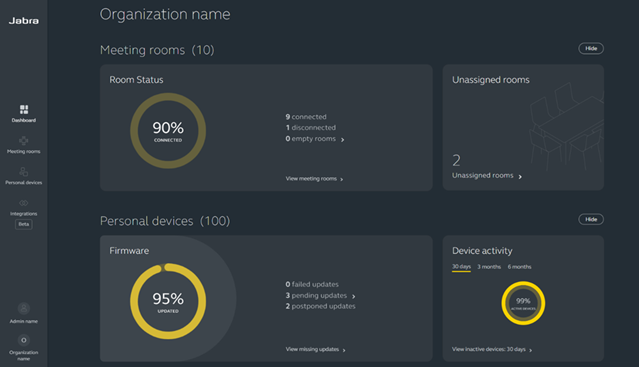
The Dashboard provides an overview of the key Jabra meeting room and personal device information, including the total number of managed Jabra meeting room and personal devices in each organization, Jabra device activity, room status, firmware status, and other variables.
You can access the dashboard from the main page after logging into the platform or click the Dashboard menu on the left-hand navigation bar.
Organizations#
An organization is a representation of your company/business on the platform with a unique organization ID. When you log in to the platform for the first time, you are prompted to create your organization, in which you take up the owner role.
Important note
When Microsoft® Entra ID SSO is enabled, admin users cannot leave an organization, invite other admin users, or modify their Jabra Plus profile in Jabra Plus Management.
Be aware that granting access or changing access rights for admin users is performed in Microsoft® Entra, instead of within the Jabra Plus Management platform. For details, see the Roles and permissions chapter.
When Microsoft® Entra ID SSO is enabled, there must always be at least one admin user with access to the organization i.e.: an admin user that can manually log in using their email address.
When Microsoft® Entra ID SSO is enabled
When the organization uses Microsoft® Entra ID SSO, all admin users authenticate through Microsoft® Entra ID. Owners cannot invite additional admin users from Jabra Plus Management. Access rights are assigned in Microsoft® Entra ID, and users without an assigned Jabra Plus role have read-only access by default.
When Federated SSO is used
When the organization uses Federated SSO, admin users authenticate through the configured identity provider. Owners must invite additional admin users from Jabra Plus Management, and their roles and permissions are managed within the platform, i.e., edit rights or read only access for meeting rooms or personal devices.
When SSO is not used
When the organization does not use SSO, similarly, to Federated SSO, owners can manually invite other admin users and set their respective permissions i.e.: edit rights or read-only access for meeting rooms* or personal devices within Jabra Plus Management.
A member can leave an organization independently; however, an owner can only leave an organization if they first elevate another user to the owner role.
Whether SSO is enabled or not, any owner can delete an organization altogether.
Viewing an organization ID#
All organizations in Jabra Plus Management have a unique organization ID, which can be used to identify organizations and track if there are any issues with devices.
For example, when an owner would like to use Federated SSO for admin user access, the organization ID is required when requesting access.
To view an organization ID:
- Log in to Jabra Plus Management
- On the bottom left-hand side of the navigation bar, click the name of the organization you currently belong to, and then click Manage my organizations
- In the Organizations page, click the action menu (three-dot menu) of the organization you would like to get the ID from
- Click View organization ID
Deleting an organization#
When an owner deletes an organization, it permanently removes all Jabra device data within the platform, and all Jabra devices in the device inventory and room inventory gradually stop sending device data.
Moreover, the connection to the platform that the relevant software client initially established is severed. However, the software client remains installed on end user computers or meeting room computers/computing devices until it is uninstalled from the devices on which it was installed.
Important note
Be aware that when an owner deletes an organization, Jabra personal and meeting room devices continue to operate, but the remote management of those devices within the platform is terminated.
The deletion process is not instantaneous and may take up to 24 hours to complete. All associated device data, usage data, and user data are then irrevocably deleted.
To delete an organization:
On the bottom left-hand side of the navigation bar, click the name of the organization you currently belong to, and then click Manage my organizations
Within the Organization pane of the organization you would like to delete, click the action menu (three-dot menu) and click Delete organization
a. If you do not see the Delete organization option, ensure you first click the action menu and then select the organization by clicking Select organization and then continue with the next step
In the Delete organization dialog, to confirm the deletion, click Yes, continue
In the Delete organization warning, check the I confirm I want to delete the organization checkbox, and click Yes, delete organization
After deleting an organization, the logged in admin user is prompted to create a new one. If there are other organizations created Jabra Plus Management makes the last active organization active.
Leaving an organization as a member#
When Microsoft® Entra ID SSO is enabled, members cannot leave an organization independently. This can only be done through Microsoft® Entra.
When Federated SSO is used, or when SSO is not used, members can leave an organization in Jabra Plus Management.
For guidance, see the Roles and permissions topic.
To leave an organization as a member:
- The member who wants to leave the organization must log in to the platform using their email address
- On the left-hand navigation bar, click the name of the organization you belong to, and then click Manage my organizations
- Within the Organization pane (of the organization you want to leave), click the action menu and click Leave organization
- In the Leave organization dialog, click Leave to confirm
At this point, the owner of the organization receives an email informing them that a member has left the organization.
Leaving an organization as an owner#
When Microsoft® Entra ID SSO is enabled, owners cannot leave an organization independently. Instead, this can only be done through Microsoft® Entra. Additionally, there must always be at least one admin user with the owner role that can manually log in using their email address and a password.
When Federated SSO is used, or when SSO is not used, an owner can leave an organization in Jabra Plus Management only if the organization has more than one owner. Otherwise, the owner must first assign the owner role to another admin user. For guidance, see the Roles and permissions topic.
After the owner has elevated an admin user from member to owner, the owner can leave an organization as follows:
- The owner who wants to leave the organization must log in to the platform using their email address
- On the left-hand navigation bar, click the name of the organization you belong to, and then click Admin users
- On the Admin users page, on the list, find the row with your name and click the action menu (three-dot menu)
- Click Leave organization, and in the Leave organization dialog box, click Leave
At this point, the new owner of the organization receives an email informing them that another owner has left the organization.
Roles and permissions#
In Jabra Plus Management, roles and permissions depend on how admin user access is managed. For details about SSO setup, see the Choosing a single sign-on option chapter.
Microsoft® Entra ID SSO vs platform-managed access
- When Microsoft® Entra ID SSO is enabled, admin users (owners and members) cannot change admin roles, edit permissions, or remove admin users inside Jabra Plus Management. Those actions must be done in Microsoft® Entra.
- • When Federated SSO is used, or when SSO is not used i.e. admin users log in manually using email/password, an owner can manage admin users from Jabra Plus Management — invite users individually, revoke invitations, change roles, and terminate or remove member access.
Be aware that Microsoft® Entra ID SSO is enabled, there is always at least one admin user who signs in manually using their email address and password.
For meeting rooms, an admin user’s permissions can also be limited to specific locations, so that the admin user can manage meeting room devices only within a predetermined location. This applies regardless of whether the admin user accesses the platform using Federated SSO, Microsoft® Entra ID SSO, or non-SSO (manually using email and password). For details and procedures, see Location-based access control.
Organization ownership
The admin user who creates an organization becomes its owner. Admin users are system/IT administrators for Jabra devices in the organization and have one of two roles: owner or member.
Role management depends on how access is configured:
- Microsoft® Entra ID SSO: Roles and access rights are assigned and managed in Microsoft® Entra ID
- Federated SSO and non-SSO: Roles and permissions are managed directly in Jabra Plus Management
The roles are broken down as follows:
- Owner
- Elevated admin user with full administrative rights for the organization and all Jabra devices
- Can perform Jabra device provisioning, enable Microsoft® Entra ID SSO, manage roles and permissions (when access is managed in Jabra Plus Management), and delete organizations
- Can change a member’s role to grant access to managing meeting room devices, personal devices, or both
- Can promote a member to owner, downgrade other owner(s) to member(s), or downgrade their own role — provided the organization retains at least one owner
- Can remove or terminate a member’s access; the exact procedure depends on whether access is managed in Microsoft® Entra ID or in Jabra Plus Management
- All admin users (owners and members) receive email notifications for any role or permission-scope changes
Be aware that when Microsoft® Entra ID SSO is enabled, the owner role appears in Microsoft® Entra as Jabra+ Organization Owner.
- Member
- Subordinate to owners; cannot perform user-management tasks or change organization settings (for example, disabling data collection)
- Cannot change their own role
- Member types:
- Member with Edit Rights: can manage and provision Jabra meeting room and/or personal devices according to assigned permissions
- Member with Read‑Only Rights: can view meeting room and personal devices and associated data but has no device- or user-management capabilities. When SSO is enabled, read-only is the default role assigned in Microsoft® Entra.
- When Microsoft® Entra ID SSO is enabled:
- Read-only is the default role assigned to users in Microsoft® Entra
- Member with edit rights appears in Microsoft® Entra as Jabra+ Personal Device Editor and/or Jabra+ Meeting Room Editor
Be aware that a member with edit rights for one device category (meeting rooms or personal devices) has read-only access to the other. Members also cannot change organization settings, such as disabling data collection.
Location-based access control#
Location-based access control lets organization owners control which locations an admin user can access in the Room inventory and which Room configurations the admin user can use.
Meeting room access and room configuration access use the same location hierarchy. Rooms and Jabra devices exist in that hierarchy. Room configurations are assigned to locations in that hierarchy.
Admin user permissions are also defined by the same hierarchy. As a result, an admin user can access only the meeting rooms, Jabra devices, and room configurations within the branches the admin user can access. This ensures that configuration visibility and use follow the same location-based restrictions as room inventory access.
Organization owners can remove an admin user’s room inventory access or limit the admin user’s access to specific locations in the hierarchy. The same location restrictions also apply to room configurations. Access can be limited to a single location or to a parent location.
When access is limited to a parent location, the admin user can also access all child locations below it. If access is limited to a child location, the admin user cannot access parent locations or sibling branches.
Each room configuration belongs to a location in the organization hierarchy. The location where a configuration is added determines where that configuration can be used. Room configuration access follows the same hierarchy rules as meeting room access.
When an admin user changes the configuration for a room, Jabra Plus Management checks:
- The location of the room
- The location of the room configuration
A configuration is available only when it is valid for the room location and within the admin user’s allowed location scope.
A room configuration can be used only in:
- Its own location
- Child locations below it in the same branch
A room configuration cannot be used in:
- A parent location above it
- A different branch of the hierarchy
Note
When assigning or moving a room configuration, some locations in the hierarchy may be unavailable for one of two reasons:
- The admin user does not have full access to that location. An admin user with the owner role would have to change the access.
- The room configuration cannot be used in that location based on the location hierarchy and the rooms already assigned to the configuration. In this case, the admin user can duplicate the configuration and assign the duplicate to a location within the admin user’s access. For the procedure to duplicate a room configuration, see Duplicating a configuration for meeting room devices.
The following example shows a simple location hierarchy:
- Organization name (Parent)
- Denmark
- Copenhagen office
- Poland
- Denmark
In the example above:
- If an admin user’s access is limited to Denmark, the admin user can access only the room inventory for Denmark and Copenhagen office. The admin user cannot access the room inventory for Organization name (Parent) or Poland
- If an admin user’s access includes Organization name (Parent), the admin user can access Organization name (Parent) and all locations below it, including Denmark, Copenhagen office, and Poland
- A configuration added at Organization name (Parent) can be used for rooms in Organization name (Parent), Denmark, Copenhagen office, and Poland
- A configuration added at Denmark can be used for rooms in Denmark and Copenhagen office
- A configuration added at Copenhagen office can be used only for rooms in Copenhagen office
- A configuration added at Poland cannot be used for rooms in Denmark or Copenhagen office
If an admin user has access only to Denmark, the admin user can work with rooms and room configurations in Denmark and Copenhagen office. The admin user cannot work with room configurations in Poland. The admin user also cannot work with room configurations at the Organization name (Parent) level unless that level is included in the admin user’s location permissions.
Note
The Organization name (Parent) level is treated as a location in the hierarchy. A configuration added at that level can be used by child locations, subject to the admin user’s location permissions.
Additionally, Standard Configuration is pinned to the Parent level Organization name and cannot be reassigned to another location.
Location-based access control affects meeting rooms and room configurations in the following ways:
- Access room inventory: Admin users can access only the meeting rooms and devices in locations they can access
- View and change configurations: Admin users can view and change only configurations in locations they can access
- Add configurations: Admin users can add configurations only in locations they can access
- Assign configurations to rooms: Only configurations that are valid for the room location and within the admin user’s location scope are available
- Move rooms: If a room already uses a room configuration, only destination locations where that configuration remains valid are available
Important note
When changing the location or moving a room configuration, Jabra Plus Management also checks whether any rooms currently assigned to that configuration would still be allowed to use it. For example, if moving the configuration to a new location would make it invalid for one or more assigned rooms, that location would be unavailable.
This can happen when the new location is in a different branch of the organization hierarchy, because rooms can use only configurations that are valid for their location.
Tip
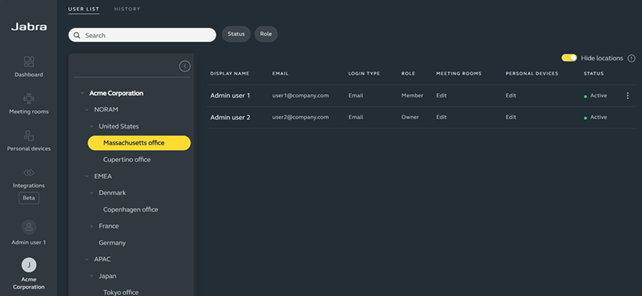
When the Show locations toggle is switched on, the location hierarchy appears and the user list is filtered by the selected location. In this state, the toggle changes to Hide locations. When the toggle is switched off, the location hierarchy is hidden and the full user list is shown, including any pending invitations
This toggle is visible only to admin users with the owner role. Members cannot see the toggle.
Restricting or allowing access to meeting room locations and room inventory#
To restrict an admin user’s access to meeting room locations:
- Log in to Jabra Plus Management with an account that has the owner role
- On the left-hand navigation bar, click the name of your organization, and then click Admin users
- On the User List tab, find the user whose location access you want to change. On the right-hand side, click the action menu (three-dot menu) and then click Edit location permissions
- In the Edit location permissions dialog, check the location name’s checkbox that you want to allow the user from accessing. Alternatively, to restrict access, uncheck the location name’s checkbox.
Note
An admin user with the owner role cannot edit location permissions for another owner, nor for another admin user whose invitation is still pending.
- Click Save
At this point, the admin user’s permission scope is now restricted to the selected location(s).
Assigning a location to a Room configuration#
To assign a location to a Room configuration:
- Log in to Jabra Plus Management with an owner or member role
- On the left-hand navigation bar, click Meeting rooms > Room configurations
- In the Room configurations page, click the configuration you would like to assign a location to
- On the top right-hand side of the page, click the action menu and then click Change configuration location
- In the Change configuration location dialog, check the checkbox of the location where you would like to assign the configuration to
- Click Save
Note
When changing the location of a Room configuration, Jabra Plus Management checks whether any rooms currently assigned to that configuration would still be allowed to use it. If moving the configuration to a new location would make it invalid for one or more assigned rooms, that location would be unavailable.
Roles and permissions matrix#
The following matrix shows interactions that an owner or member can or cannot perform within Jabra Plus Management.
| Interactions | Owner | Member (edit rights) | Member (read only) |
|---|---|---|---|
| - Delete an organization - Change organization settings (data collection) | Yes 1 | No | No |
| - Invite new admin users to the organization - Change roles from owner to member (or vice versa) - Change permissions for members with edit rights to read-only rights (or vice versa) - Remove admin users (owners ormembers) from the organization | Yes 1 | No | No |
| - Leave an organization 1 | No 2 | Yes | Yes |
| - View history (admin user activity log) | Yes | No | No |
| - Access the Meeting rooms menu item to view Jabra meeting room devices in the room inventory and associated data e.g.: created room clients, created room configurations, etc. | Yes | Yes | Yes |
| - Add a (empty) room - Name meeting rooms - Change Jabra meeting room device settings - Download Jabra Plus room clients - Create room configurations | Yes | Yes 3 | No |
| - Access the Personal devices menu item to view personal device details, device inventory, device groups, installed instances of Desktop clients ( Jabra Plus Desktop ), number of Jabra devices provisioned, and Configurations menu items | Yes | Yes | Yes |
| - Add personal devices to the device inventory - Export the list of Jabra personal devices - Create device groups to sort Jabra personal devices - Create and assign configurations | Yes | Yes 4 | No |
| - Enable or disable firmware management - Change firmware policies for an organization’s Jabra devices | Yes | Yes 3,4 | No |
| - Lock specific Jabra device settings and prevent end users from changing them | Yes | Yes | No |
| - Create and download software clients | Yes | Yes 3,4 | No |
| - Reboot Jabra meeting room devices | Yes | Yes 3 | No |
| - Access the Integrations menu to grant or revoke access to the Jabra API portal and specify webhook endpoints | Yes | No | No |
1 When SSO is enabled, these actions are performed in Microsoft® Entra or not at all. Refer to the Enabling SSO procedure.
2 An owner can only leave an organization if there is another owner in the organization. Refer to the Leaving an organization as an owner procedure.
3 Provided that the member with edit rights has access to Meeting room management and, if location-based access control is used, also has the required location access. For procedures, see Changing roles and editing permissions of non-SSO users and Restricting or allowing access to meeting room locations and room inventory.
4 Provided that the member with edit rights has been given access to Personal device management. For the procedure, see Changing roles and editing permissions of non-SSO users.
Changing roles and editing permissions of admin users (for Federated SSO and non-SSO access)#
Important note
When Microsoft® Entra ID SSO is enabled, admin users cannot leave an organization, invite other admin users, modify their Jabra Plus profile, or edit admin roles and permissions within Jabra Plus Management. Instead, role management is performed in Microsoft® Entra ID. However, location-based access control for meeting rooms is configured in the platform; for details, see Location-based access control. For conceptual guidance regarding roles, see the Roles and Permissions chapter.
For Federated SSO and non-SSO access (using email and password), an owner manages roles and permissions directly in Jabra Plus Management using the following procedure.
To change roles or edit permissions for an admin user:
Log in to Jabra Plus Management using your email address and owner role
On the left-hand navigation bar, click the name of the organization you are currently the owner of, and then click Admin users
On the Admin users page, on the list, find the user that you want to manage access rights for or to remove, click the action menu (three-dot menu) and click Edit permissions
a. To change the role of a member to owner or vice-versa, in the Edit permissions dialog, in the Role pane, select Member or Owner, and then click Save
b. To edit the access rights or permissions for a member , in the Permissions pane, select Edit or Read only for meeting rooms/personal devices, and click Save
For changes to apply, after changing the role of a user, the user must log out and log back in to the platform.
Removing an admin user#
To remove an admin user when Microsoft® Entra ID SSO is enabled, an owner must first remove the user in Microsoft® Entra, and then perform the procedure that follows, in the Jabra Plus Management platform. This initial step is required because user management in Microsoft® Entra ID does not automatically sync deletions with the platform. For procedures on how to remove a user from Microsoft® Entra, refer to Microsoft documentation.
For Federated SSO and non-SSO access (using email and password), this initial step is not required, and an owner can remove the admin user directly in Jabra Plus Management, using the following procedure.
To remove an admin user from Jabra Plus Management:
- Log in to Jabra Plus Management using your email address and owner role
- On the left-hand navigation bar, click the name of the organization you are currently the owner of and then click Admin users
- On the Admin users page, on the list, find the user that you want to terminate access for, and click the action menu
- Click Remove admin user, and in the Remove admin user dialog, click Remove
If the removed member was also an admin user in other organizations, the removed user maintains their membership in the other organization(s); however, the removed member can also be reinvited.
Viewing admin user activity or history#
To enhance security and accountability, the platform logs admin user activity to monitor, track, and manage user activities in an organization.
On the platform, the History tab in the Admin users menu keeps a log of any changes to access rights, user invitations, and access terminations for 30 days.
The admin user with the owner role can view admin user activity or history on a filterable list. The list contains details such as Time, Impacted Entity, Event, and User.
To view admin user activity:
- On the left-hand navigation bar, click the name of the organization you are currently the owner of, and then click Admin users
- On the Admin users page, click the History tab
The history of admin user activity in the organization is now visible on a list that can be sorted by Time, Impacted Entity, Event, and User.
Alerts#
You can use alerts to monitor Jabra device and firmware events for Jabra meeting room devices. When one of the following events occur, the Jabra Plus Management platform can send an email-based alert to up to ten recipients:
- Device offline or powered off: A Jabra meeting room device is no longer online or powered on
- Firmware update available: A new firmware version is available for a Jabra meeting room device
For information about managing firmware updates, see the Firmware management chapter.
For each event, you can enable or disable alerts. You can also add or remove alert recipients and send test alerts. You must add at least one email recipient before Jabra Plus Management can send email-based alerts. Alerts are configured at an organization level, so if you have multiple organizations, you must configure the alerts for each organization.
Each alert includes key event details and a link to the Jabra Plus Management platform, so you can investigate and take action. Depending on the event, the email subject line also identifies the event type and the affected meeting room device.
Specifically, for Device offline or powered off events, you must set a grace period to avoid alerts for brief interruptions, such as an unnecessary alert when Rebooting Jabra meeting room devices.
When a grace period is configured, the platform waits until the event has remained active for the full duration of the grace period before sending the first alert. You can also choose whether to have these alerts delivered separately or group them in one.
Note
To ensure alerts are displayed as intended, use the latest version of Microsoft Outlook.
Email delivery options
In the Meeting rooms > Emails tab, in the Email delivery pane, Jabra Plus Management sends alerts in one of two ways:
- Send alerts separately: Sends an email for each alert
- Group alerts in one email: Groups alerts in one email
Be aware only Device offline or powered off alerts can be grouped. Firmware update available alerts cannot be grouped.
The platform uses a three-minute grouping window for grouped alerts. A grouped alert lists up to eight affected Jabra meeting room devices. If more than eight devices are affected, clicking the link in the email-based alert opens the Room inventory in the platform, filtered to show all affected meeting rooms.
Note
You must be signed in to the relevant organization where you have configured the alerts in Jabra Plus Management before clicking the alert link. Otherwise, you may be unable to view the affected meeting rooms.
Muting alerts
You can also mute email alerts for an individual meeting room during planned maintenance or when the room is intentionally offline. Muting alerts affect only the selected meeting room and does not change the organization-wide alert configuration.
To view rooms with muted or unmuted alerts, use the Alerts filter in the Room inventory.
Configuring alerts for meeting room device events#
Alerts let predetermined recipients know when events occur on Jabra meeting room devices. An admin user with either an owner or member with edit rights (for meeting rooms) role can choose which events send alerts, set a grace period for relevant events, and choose whether to send the Device offline or powered off alerts separately or group them in one.
To configure alerts for meeting room device events:
On the left-hand navigation bar, click Meeting rooms > Alerts
On the Alerts page, in the Emails tab, in the Event configuration pane, enable the relevant toggle switches: Device offline or powered off, Firmware update available, or both
a. For Device offline or powered off events, in the Grace Period dropdown, select the required time frame, ranging from five minutes to one hour
b. In the Email delivery pane, click the relevant radio button for Send alerts separately or Group alerts in one email
In the Email recipients pane, in the field provided, enter the email address or addresses of users who are to receive the alerts. You can enter a maximum of ten email addresses
- Optionally, to verify that the configured recipients can receive alerts, click Send test email. This sends a test email to the recipient(s) to confirm that the configured recipient(s) can receive alerts before an event occurs.
- Click Publish
Alerts are now configured for the organization.
Muting and unmuting alerts#
To stop notifications during planned maintenance or when the room is intentionally offline, an admin user with either an owner or member with edit rights (for meeting rooms) role can mute alerts for all events occurring in that specific meeting room.
The admin user can also unmute alerts to resume email-based notifications for events occurring in the room.
To mute alerts for a meeting room:
- On the left-hand navigation bar, click Meeting rooms > Room inventory
- On the Meeting room inventory table, click the room name you would like to mute alerts for
- On the Room page, on the top right-hand side, click the action menu (three-dot menu) and click Mute alerts
At this point, the email alerts are muted for all events, and the muted email alerts (bell) icon is displayed next to the meeting room name.
To unmute email alerts for a meeting room:
- On the left-hand navigation bar, click Meeting rooms > Room inventory
- On the Meeting room inventory table, click the relevant meeting room name
- On the Room page, on the top right-hand side, click the action menu (three-dot menu) and click Unmute alerts
At this point, the alerts are unmuted for all events, and the (bell) icon is no longer displayed next to the meeting room name.
Note
ServiceNow® integration is a separate feature. It uses the same supported alert events to route issues into ServiceNow® for incident management workflows.
ServiceNow® ticketing automation#
Important note
The ServiceNow ticketing automation feature is currently available to select trial customers.
ServiceNow® ticketing automation lets you route selected Jabra Plus Management meeting room device events to your organization’s ServiceNow instance.
When a configured event occurs, the Jabra Plus Management platform automatically creates an incident in ServiceNow. This enables your IT support team to investigate and address the issue through its established incident-management workflow.
For example, the integration can create incidents for supported meeting room device events, such as Device offline or powered off and Firmware update failed.
The ServiceNow integration is configured in two parts:
- Connect your organization to its ServiceNow instance in Organization settings
- Configure device events that create ServiceNow incidents in Meeting rooms > Alerts
For each event, you can set a grace period to avoid creating incidents for brief interruptions of meeting room device availability or temporary meeting room device reboots.
You can also add ServiceNow field names and values to the incident, such as an assignment group or priority. This helps route and categorize incidents according to your organization’s ServiceNow configuration.
You can also send a test ticket to confirm that the connection and configured field values create the expected incident in ServiceNow.
Connecting to ServiceNow#
Before Jabra Plus Management can create ServiceNow incidents, an organization owner must connect your organization to its ServiceNow instance and establish a connection.
After the connection is established, you can configure supported device events to create incidents. Return to Organization settings > Ticketing to review or disconnect the ServiceNow connection when needed.
To do this:
- On the left-hand navigation bar, click the name of the organization
- Click Organization settings
- On the Organization settings page, click the Ticketing tab
- In the Connect to ServiceNow pane, click Connect
- In the Connect to ServiceNow dialog, in the ServiceNow instance URL field, enter your organization’s instance URL. For example: [https://yourcompany.service-now.com]
- In the ClientID field, enter your organization’s client ID
- In the Client Secret field, enter your organization’s client secret
- Click Connect
At this point, in the Connect to ServiceNow pane, you will see a Connected to [https://yourcompany.service-now.com] ServiceNow instance.
Configuring ServiceNow alerts#
After you connect your organization in Jabra Plus Management to ServiceNow, you must configure which supported meeting room device events create incidents in ServiceNow.
In Meeting rooms > Alerts > Ticketing tab, enable the relevant event types and define their alert settings. For each event, you can configure a grace period and add optional ServiceNow field names and values. Jabra Plus Management includes the configured values when it creates the incident.
To configure ServiceNow alerts
- On the left-hand navigation bar, click Meeting rooms > Alerts
- On the Alerts page, click the Ticketing tab
- On the Ticketing tab, in the Event configuration pane, enable the relevant toggle switches
- Next to each switch, to customize the fields, click the Customize button
- In the Customize ServiceNow fields, enter the relevant values. When you are finished, click OK
- Click Apply
Tip
Click Create test incident to verify that ServiceNow receives an incident with the expected field values.