In the Jabra Plus Management platform, the Personal devices menu item lets you visualize, sort, and configure Jabra personal devices to effectively manage them in an organization.
Personal devices are audio devices such as headphones, headsets and speakerphones; Personal device management addresses the challenges of remote identification, management, and troubleshooting of Jabra personal devices.
In a managed context, the Jabra Plus Desktop app lets you, the admin user, perform bulk management of settings and firmware, inspect real-time Jabra personal device status, remotely adjust settings on behalf of end users, and other functionalities via the Jabra Plus Management platform.
Like meeting room devices, Jabra personal devices have a virtual inventory, or device inventory. The Personal devices menu item is made up of the Device inventory for personal devices, Configurations, Device groups, and Desktop clients.
Device groups act as the foundation to assign configurations, and custom firmware policies that takes effect on specific groups of Jabra personal devices.
This grouping mechanism is designed to give you an overview of all your Jabra personal devices, and help you group or classify the devices based on real or made-up variables, such as countries, cities, building or department names, etc.
To provision personal devices, you must install Jabra Plus Desktop on all end user computers. After provisioning, Jabra personal devices appear in the device inventory and you can then adjust settings remotely of a single Jabra personal device and/or to Create device groups and sort Jabra devices into Device groups.
For guidance, see the Walkthrough: Suggested configuration of Jabra Plus Management platform chapter.
Device inventory for personal devices#
The device inventory is a repository for all Jabra personal devices (including speakerphones) added to an organization. It is automatically populated when the Jabra Plus Desktop app is deployed and installed on your end user’s computers and end user Jabra personal devices are paired (Bluetooth Jabra devices) or recognized by the app automatically (cabled or wired Jabra devices).
In a searchable and filterable list, the device inventory outlines information such as Device model, Connection status, Firmware status, any Device group(s) it may belong to, (device) Serial number, Firmware version, Username, Computer name, Client name, Client version, Last seen. In the device inventory, the collected device data lets you search for keywords such as Computer Name or Windows Username.
Note
When a device serial number is not available, cannot be displayed or cannot be fetched from the device, be aware it is replaced by the Electronic serial number.
For more information about device data collection, see the Disabling data collection topic in the appendix.
In addition, you can further sort Jabra personal devices in the device inventory into device groups, effectively creating a secondary grouping in the organization.
For example, an admin user may want to group Jabra devices in the organization into different departments, such as Marketing, Human Resources, etc. You may also want to classify Jabra personal devices in device groups based on the location of Jabra devices or another useful variable.
When Jabra personal devices are added to the device inventory, a default standard configuration is applied to all Jabra personal devices in the inventory. You can also manually remove Jabra personal devices from the device inventory.
Adding Jabra personal devices to the device inventory#
For procedures, see the Device Provisioning & Onboarding Guide.
Removing Jabra personal devices from the device inventory#
You can also remove Jabra personal devices from the device inventory. When you do so, you permanently remove the Jabra personal devices from device groups.
To remove a Jabra personal device from the device inventory:
- On the left-hand navigation bar, click Personal devices > Device inventory
- On the Device inventory table, check the checkbox next to the device you would like to remove
- On the bottom ribbon, click Delete
- In the Delete device dialog, click Remove
Note
Ensure that after you remove Jabra personal devices from the device inventory, you must also uninstall the Jabra Plus Desktop app from the end user computer(s) it was installed on.
Failure to do so means when the end user reconnects their Jabra personal device to their computer, the Jabra personal device is automatically re-added to the device inventory.
Adjusting settings remotely of a single Jabra personal device#
The platform lets you remotely manage the settings of Jabra personal devices individually or in bulk.
To adjust the settings of many Jabra devices at the same time, it is recommended to use configurations and choose a suitable approach. Be aware that when adjusting individual settings, the Jabra personal device must be online.
Tip
You can also use this procedure to test the settings of a single Jabra device before mass deployment and determine whether the changes are suitable or not.
To adjust the settings of one Jabra personal device:
- On the left-hand navigation bar, click Personal devices > Device inventory
- On the table of personal devices, find the Jabra device you would like to change settings for. You can search for the specific Jabra device using filtering based on Model, Connection status, Device group, Firmware Status, Inactive devices, or Firmware Stage
- Click the Jabra device name, for example, Jabra Evolve3 85
- Click the Settings tab, and adjust the settings of your relevant device
- To apply the changes and deploy them to the end user, on the bottom ribbon, click Publish changes
For changes to take effect, ensure you restart the computer that the personal device is connected to. Changes are applied when the end user logs in to Windows® again.
Exporting the device inventory table or list#
To see a list of your Jabra personal devices on a comma-separated values list, you can export your device inventory as a *.csv file. The list contains details such as Firmware status, Computer name, Firmware version, (device) Serial number, and others.
When you generate a list, be aware there is a limit of 2000 Jabra devices. You can use the filters on the list to narrow down the number of devices based on Connection status, Device, Device group, Firmware status, Client name, Last seen, and Firmware stage.
To export the list:
- On the Device inventory page, in the top right-hand of the list, click the action menu and then click Export to CSV. The file is then downloaded to your default Downloads folder associated with your web browser
Viewing Jabra personal device details#
When a Jabra personal device is added to the device inventory, you can see information such as Firmware status, Operating system, Computer name, Client version, Version Policy, and others.
To do this:
- On the Device inventory page, click the device name on the list to see additional Jabra personal device details, such as Jabra Evolve3 85, Jabra Evolve2 75, etc. You can search for the specific Jabra personal device using filtering based on Model, Device group, Firmware status, or Connection status.
Customizing the device inventory table#
You can customize your view of the device inventory and display or hide columns. Be aware that Device , Connection status , and Firmware Status remain selected and cannot be hidden or removed from the table.
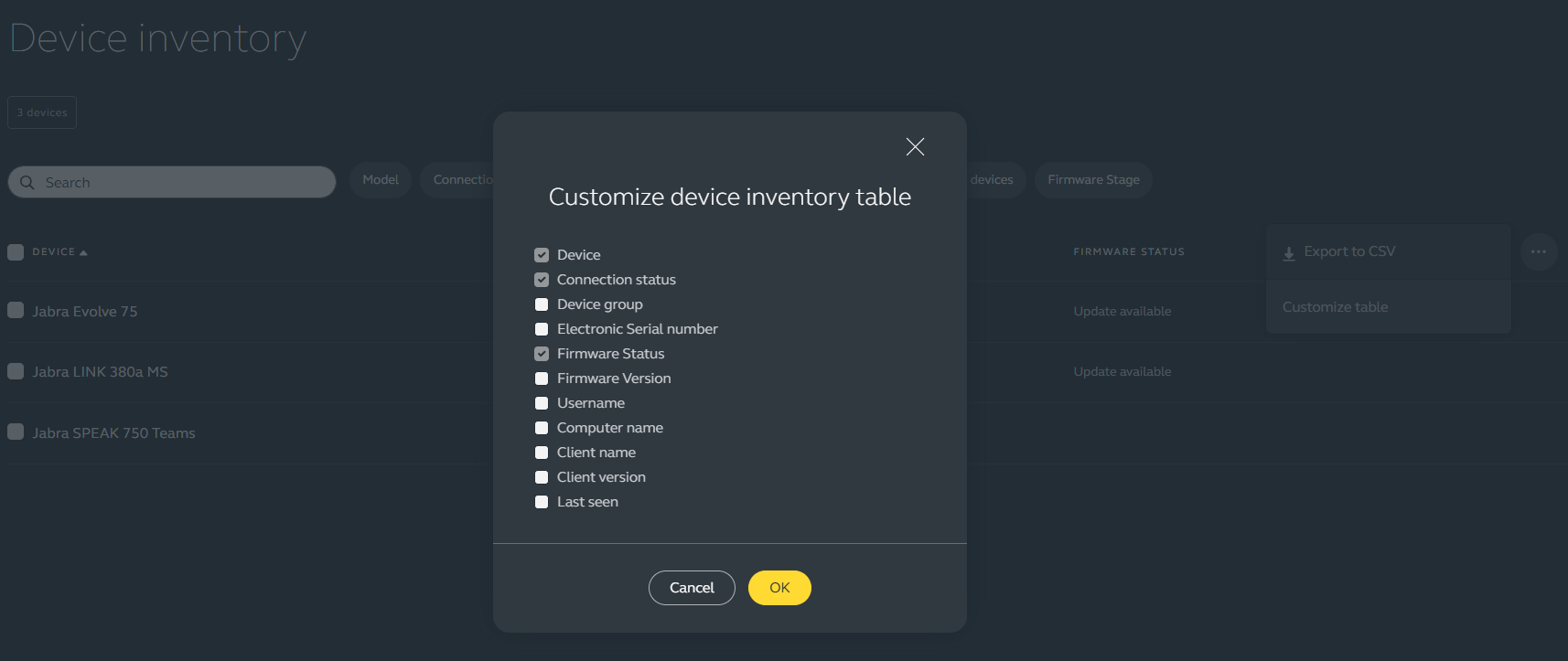
To customize the device inventory table:
- On the Device inventory page, on the top right-hand side of the table, click the action menu and then click Customize table . In the Customize device inventory table dialog box, check or uncheck the checkboxes you would like displayed or hidden, and to save your preference, click OK
Device groups for personal devices#
To help admin users manage and organize Jabra personal devices in the device inventory, device groups let the admin user sort the collection of Jabra personal devices into different containers or buckets. For example:
- Primary grouping: Organization (e.g., ABC Company)
- Secondary grouping: Device groups (e.g., Marketing, Human Resources)
In this case, you can add Jabra personal devices from the device inventory into the individual device groups that were created and named. Device groups are essential for creating configurations, enabling the deployment of specific settings to select Jabra personal devices. See the Configurations chapter for details.
Creating a device group for personal devices#
Creating a device group can be helpful when you have a large number of Jabra personal devices in your device inventory because it helps you create a container or bucket for them.
You can also create a device group to test a specific firmware version you would like to use with your Jabra devices, before you perform a mass deployment.
To create a device group:
- On the left-hand navigation bar, click Personal devices > Device groups
- On the Device groups page, click Create
- In the Create device group dialog, in the Name field, enter a name for your device group, for example, Marketing department. Optionally, in the Description field, enter a description of your device group
- Click the Configuration drop down to select the configuration you would like associated with the device group
- Click Create
You are now taken to the Device groups page.
Sorting personal devices into a device group#
After creating and giving a name to a device group, you can sort your Jabra personal devices into device groups.
A Jabra personal device can only be associated with one device group at a time. If the Jabra device is added to a different device group, the new one replaces the previous affiliation.
To sort Jabra personal device(s) from the device inventory to a device group:
- On the left-hand navigation bar, click Personal devices > Device inventory
- On the table, check the checkbox of the relevant Jabra device(s)
- On the bottom ribbon, click Add devices to device group
- In the Add devices to device group dialog, select a device group, and click Add devices
You have now added Jabra personal devices to a device group.