Appendix#
This appendix provides supplementary information to support the main content of the document. It includes detailed technical specifications, procedures, limitations and additional resources that enhance understanding and facilitate implementation.
Limitations#
Jabra Plus Management is currently limited as follows:
- Personal devices management
- End users cannot adjust settings of their Jabra personal device through the Jabra Plus Desktop app
- For personal devices, the following settings are unsupported in all Jabra device models and variants:
- Sound profile
- Meeting room devices management
- Admin users with restricted access to Locations can still modify any Room configurations, including any previously created room configurations that were assigned to rooms in restricted locations
- The PanaCast 40/50/55 Video Bar System (VBS) All-in-one, and the PanaCast 40/50/55 Video Bar System (bar only) do not support the settings lock feature.
- In the Jabra Plus Management platform, the following settings for the PanaCast 50 — Bring Your Own Device (BYOD) and PanaCast 50 Room System (RS) are not available:
- Audio notifications and feedback
- Room safety capacity notifications (type, timing, and limit)
- Whiteboard view set up & sharing mode
- Contrast enhancement
- Video transition style
- Preset 1 and 2 – Pan, Tilt, Zoom settings
- Video flicker
- Product information
- For all Jabra meeting room devices, Whiteboard view setup is not yet available
- The platform does not support the Room Insights feature from Jabra Xpress
- Automatic migration of room analytics data is not possible between Jabra Xpress and Jabra Plus Management platform. An admin user (owner or member with edit rights) can export settings and room information from Jabra Xpress to Jabra Plus Management platform; however, this must be done manually.
Detailed whitelist domain requirements#
Important note
Table 1 outlines the Jabra Plus Management platform’s core, images, and analytics related domains. If your organization does not permit whitelisting domains with a wildcard (*) prefix, refer to Table 2 for the specific subdomains.
Table 1
| Domain (*= wildcard) | Outbound TCP port(s): | Description | |
|---|---|---|---|
| Jabra Plus Management core | https://*.cloud.jabra.com/* | 443 | Used to access the Jabra Plus Management platform |
wss://*.cloud.jabra.com/* | 443 | Used by SignalR WebSocket communication layer for responsive UI | |
https://*.azure-devices.net/* | 443 & 5671 | Used by Jabra devices, the IoT Hub service facilitates communication with Azure Cloud services | |
https://global.azure-devices-provisioning.net/* | 443 | Needed for device provisioning, regardless of device type (Headset, Android, or Linux) | |
https://*.cookiebot.com/* | 443 | Used for collecting consent. If no consent is given, no data is collected |
| Jabra Plus images | https://images.ctfassets.net/* | 443 | Used by the Content Delivery Network (CDN) for Jabra device images |
|---|---|---|---|
| Jabra Plus Management analytics related 1 | https://content.hotjar.io/* | 443 | Used for heatmaps, screen recordings, and feedback collection. |
https://*.hotjar.com/* | 443 | Used for heatmaps, screen recordings, and feedback collection. | |
https://www.googletagmanager.com/* | 443 | Used for in-app event statistics collection. | |
https://*.google-analytics.com/* | 443 | ||
https://ssl.gstatic.com/* | 443 | ||
https://www.google-analytics.com/* | 443 |
1 The following domains and subdomains are used for data gathering at Jabra to improve Jabra Plus Management user experience, and general system monitoring. Only anonymized Jabra Plus Management usage details are collected, and it does not include personal information. For details, see the data collection topic.
Table 2
If you cannot whitelist parent domains with a wildcard (*) as a prefix, the following table lists the specific subdomains, denoted with a (▶).
| Specific subdomain (prefix instead of wildcard) | Outbound TCP port(s): | Description | |
|---|---|---|---|
| Jabra Plus Management core | https://*.cloud.jabra.com/* | 443 | Used to access the Jabra Plus Management platform |
▶ https://cloud.jabra.com/* | 443 | Used to access the Jabra Plus Management platform | |
▶ https://signalr.cloud.jabra.com/* | 443 | Used to establish real-time connections of Jabra devices to the platform and for sending events | |
▶ https://api.cloud.jabra.com/* | 443 | The main API used by Jabra Plus Management platform software clients | |
▶ https://file.cloud.jabra.com/* | 443 | Used exclusively to download Jabra Plus Provisioning *.msi files stored in Azure blobs | |
▶ https://content.jabra.com/* | 443 | Used by the Content Delivery Network (CDN) for translations | |
▶ ntp.jabra.com | 123 | Used over UDP for time synchronization and Online / Offline status for Jabra meeting room devices | |
wss://*.cloud.jabra.com/* | 443 | Used by SignalR WebSocket communication layer for responsive UI | |
▶ wss://signalr.cloud.jabra.com/* | 443 | Used by SignalR WebSocket communication | |
https://*.azure-devices.net/* | 443 & 5671 | Used by Jabra devices, the IoT Hub service facilitates communication with Azure Cloud services | |
▶ https://jabra-prd-westeu-iothub.azure-devices.net/* | 443 & 5671 | Used by Jabra devices, the IoT Hub service facilitates communication with Azure Cloud services | |
https://*.cookiebot.com/* | 443 | Used for collecting consent. If no consent is given, no data is collected | |
▶ https://consentcdn.cookiebot.com/* | 443 | Used for collecting consent. If no consent is given, no data is collected | |
▶ https://consent.cookiebot.com/* | 443 | Used for collecting consent. If no consent is given, no data is collected | |
| Jabra Plus Management analytics related | https://*.hotjar.com/* ▶ https://ws.hotjar.com/* ▶ https://script.hotjar.com/* ▶ https://static.hotjar.com/* | 443 | Used for heatmaps, screen recordings, and feedback |
https://*.google-analytics.com/* ▶ https://region1.google-analytics.com/* | 443 | Used for in-app event statistics collection. |
Device Management System matrix#
The following table informs you of known Jabra Plus Management platform compatibility issues with other device management systems and offers recommendations when more than one system is used together at the same time as the platform.
| Device Management System | Potential issues | Recommendation |
|---|---|---|
| Jabra Xpress | When using both systems (Jabra Plus Management platform and Jabra Xpress) at the same time, duplicate device management can cause a conflict. | Not recommended. Avoid using the Jabra Plus Management platform and Jabra Xpress at the same time. For more information, see the Migration from Jabra Xpress to Jabra Plus Management topic. |
| Jabra Direct | Using both systems simultaneously can cause device management conflicts, except during initial setup for Jabra meeting room devices or when using older Jabra personal devices. Exception for meeting room devices Setting up Whiteboard view is not supported natively in the Jabra Plus Management platform. Exception for personal devices You can use Jabra Direct or Jabra Xpress to update the firmware of older Jabra personal devices. To check whether your Jabra device is compatible with the Jabra Plus Management platform, see Supported Jabra devices . | Not recommended. Avoid using the Jabra Plus Management platform and Jabra Direct at the same time. Exception for meeting room devices You can still use Whiteboard view in the Jabra Plus Management platform after you set it up in Jabra Direct . After setting up Whiteboard view , you must close, exit, or uninstall Jabra Direct and continue using the platform only. For guidance, see the Jabra meeting room device documentation . Exception for personal devices After updating the firmware using Jabra Direct or Jabra Xpress , ensure you uninstall them. |
| Lenovo ThinkSmart™ Manager (basic + premium) | When using both systems at the same time, duplicate device management can cause a conflict and settings can be overwritten. | Not recommended. Avoid using the Jabra Plus Management platform and Lenovo ThinkSmart™ Manager at the same time. |
| Zoom Device Management (firmware management only) | Managing device firmware on both device management systems is not recommended. | Choose the Jabra Plus Management platform as the primary firmware management platform instead of Zoom Device Management. If firmware must be managed using Zoom’s Device Management instead of the platform, ensure the firmware policy is disabled on the platform. See the firmware policy chapter for the procedure. |
| Microsoft Teams Pro Manager Portal | Both device management systems can run at the same time. No known conflicts exist. | Ensure the Jabra Plus Management platform and Microsoft® Teams Pro Manager Portal are set up/configured to avoid conflicts. |
| Windows Update (firmware management only) | Firmware management can be handled side by side only if one of the two firmware management systems is disabled. Either disable it in the Jabra Plus Management platform or pause Windows Updates. | To keep a fixed firmware version on Jabra meeting room devices, then disable the Always keep devices updated toggle switch in the Jabra Plus Management platform and pause Windows Updates. To do this, see the modifying & setting the firmware policy for specific Jabra device models procedure in the firmware policy chapter. |
| Crestron XiO Cloud | When using both systems at the same time, duplicate device management can cause a conflict. | Not recommended. Avoid using the Jabra Plus Management platform and XiO Cloud at the same time. |
Note
If the organization has Jabra meeting room devices, an owner or member with edit rights (for meeting rooms) must choose whether to manage firmware through Windows Update or through the Jabra Plus Management platform
Migrating from Jabra Xpress to Jabra Plus Management#
The Jabra Plus Management platform does not provide tools for automatic migration of settings and room information from Jabra Xpress to the platform. This must be done manually.
Important note
There can only be one instance of a Jabra software client running on one individual computer.
If you are a current user of Jabra Xpress and/or Jabra Direct client, you can optionally migrate settings and room information to the Jabra Plus Management platform. To do so, complete the procedure that follows and perform the migration, and afterwards uninstall Jabra Xpress.
Be aware that the software clients in Jabra Plus Management were designed for a “clean install”, i.e., without other Jabra applications previously installed. Therefore, it is not recommended to use the platform’s software clients simultaneously with other Jabra software or partner applications (e.g.: ThinkSmart™ Manager, Jabra Integration Services, Jabra Xpress , or Jabra Direct client) on the same computer.
To prevent conflicts or unexpected behavior – and only after you perform the optional migration – you must uninstall other Jabra software or partner applications before continuing with provisioning Jabra devices into the platform. After migration, you can uninstall the Jabra Direct client and stop using Jabra Xpress to manage your Jabra devices.
Gradual migration
To reduce downtime, you can perform a gradual migration, as the Jabra Xpress solution (i.e.: Jabra Xpress, Jabra Xpress Cloud, Jabra Xpress Tenant, Jabra Xpress Packages) can work in parallel with the Jabra Plus Management platform.
However, the Jabra Direct client must not be installed on the same computer, where the platform’s software clients are also installed.
To perform the migration, ensure you follow procedures A and B.
A. Copy existing settings
To migrate your settings into the Jabra Plus Management platform from Jabra Xpress:
- Launch Jabra Xpress
- On the left-hand navigation bar, click Devices > Manage
- Click on the relevant Jabra device and manually copy the settings using your preferred method. For example, you can copy the settings to a text or spreadsheet. After provisioning your Jabra device to the Jabra Plus Management platform, ensure you create a configuration with the settings from Jabra Xpress
At this point, you can continue with the next procedure Export room information. If you do not have to do this, ensure you uninstall Jabra Xpress.
B. Export room information
In Jabra Xpress, the Room Insights menu item contains analytics information about meeting room(s), room usage, capacity thresholds, Jabra device usage, and more.
You can export this data as a *.csv file and keep it for backup. To do this:
- Launch Jabra Xpress
- On the left-hand navigation bar, click Analytics > Room Insights
- On the Select Time Range ribbon, on the right-hand side of the screen, click Export
- Enter a name for the file and click Save
- Ensure you uninstall Jabra Xpress
Disabling data collection#
Data collection lets you gather end user data such as Computer username , Computer information , and Location , among other information. Data collection is enabled by default when you create an organization. However, you can also disable it if necessary.
Data collection is necessary to identify and manage Jabra devices and meeting rooms. More specifically, when the Data to be collected checkboxes are checked, the following information is collected and sent to Jabra Plus Management:
- Computer Username: The username of the operating system where the software client is running
- Computer Information: A set of values showing Computer name, Operating system name, Operating system version, List of IP addresses, Domain name, Computer manufacturer´s name, Computer serial number
- Location: Information about computer location if available from the system. This information needs to be accessible to the software client first
Important note
Your organization may want to disable data collection due to legal concerns or privacy policies.
To disable data collection:
- On the left-hand navigation bar, click the name of the organization you are currently the owner of or belong to, and then click Organization settings
- On the Organization settings page, in the Data to be collected section, uncheck the relevant checkboxes, i.e., Computer information, Location, and Username
- To confirm your data collection choices, click Save
- In the Data collection dialog, click OK
At this point, your Jabra personal and meeting room devices stop sending and collecting data in Jabra Plus Management.
Firmware bundles and specific firmware versions#
Firmware bundles are exclusive to PanaCast 40, 50, and 55 VBS video bars, and they contain a package of firmware versions that ensure the touchscreen tablet/touch controller can work with the video bar, avoiding incompatibility issues. This is due to the tablet having its own firmware.
For example, Bundle 1.0.0 includes two firmware: one for the video bar (i.e. 6.5.0 PanaCast 50 VBS bar) and another for the touchscreen tablet/touch controller (i.e. 6.5.0 PanaCast Control).
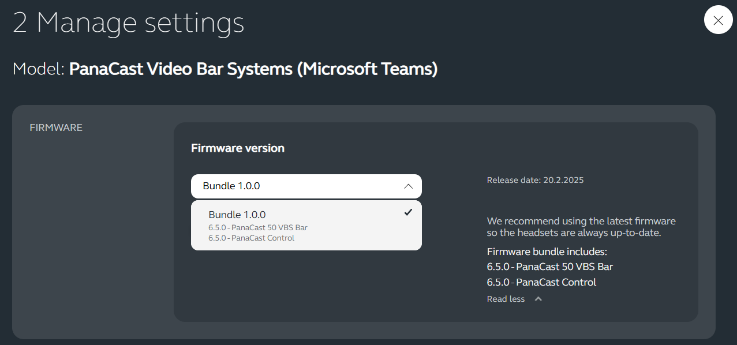
Specific firmware versions for PanaCast 50 VBS
When you create a room configuration from scratch, or set exceptions in the Standard Room Configuration , and you want to run an earlier firmware version than 6.5.0, you must select the old card i.e.: PanaCast video bar system (Firmware release: February 2025 or older)
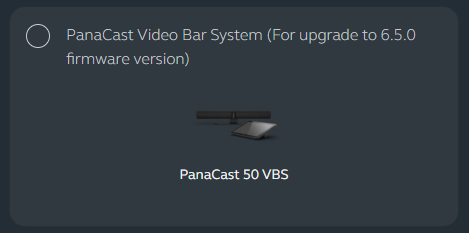
Important note
Before installing firmware version 6.5.0 or later, on your PanaCast 50 VBS with Microsoft® Teams as the video service provider, you must migrate the affected Jabra meeting room device to Android Open-Source Project (AOSP) and upgrade to the Microsoft® Device Ecosystem Platform (MDEP). The migration ensures that the connection to your current rooms is not severed by a firmware update to version 6.5.0 or later. For migration instructions, read the Android Migration Guide.
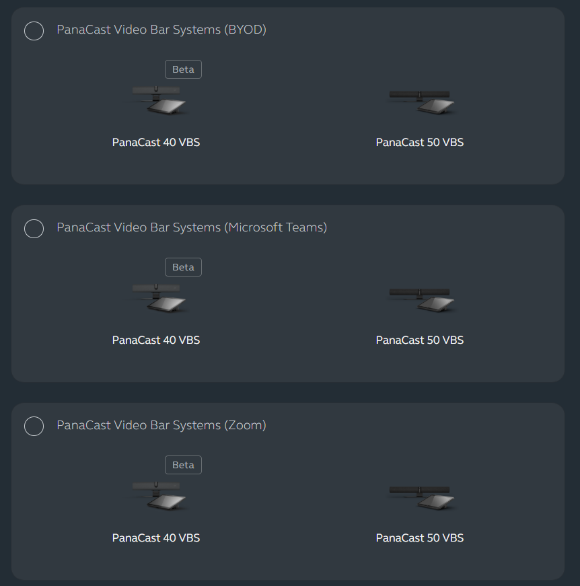
However, if you have updated the firmware of your PanaCast 50 VBS to version 6.5.0 or later, then you must select the PanaCast 50 VBS option together with the relevant video service provider i.e.: Microsoft Teams, Zoom or BYOD.
Duplicating a configuration for personal or meeting room devices#
You can also duplicate a configuration or room configuration and assign it to many rooms or device groups.
Duplicating a configuration with custom Jabra device model settings, firmware policy, and locked end user settings allows you to create multiple similar configurations/room configurations and make small changes if necessary.
To duplicate a configuration/room configuration:
- On the left-hand navigation bar, click Meeting rooms > Room configurations, or in the case of personal devices, click Devices > Configurations
- On the Room configurations/Configurations page, click the pane with the configuration name you would like to duplicate
- On the configuration page you would like to duplicate, on the top right-hand side of the screen, click the action menu and click Duplicate configuration
- In the Duplicate configuration dialog, in the Configuration name field, enter a name. Optionally, in the Description field, enter a description for the duplicated room configuration/configuration. For room configurations, under Assign to location, select the location where the room configuration is available for use
- Click Save Changes
For your duplicated configuration to take effect, you must assign a configuration to a device group or a room.
Bulk-assigning a room configuration to many rooms#
For a configuration to take effect on specific rooms with Jabra meeting room devices and replace the default Standard Room Configuration for the specific rooms, you must change the assigned configuration of the room. When required, you can also select multiple rooms and bulk assign a room configuration that was created.
To bulk-assign a room configuration to many rooms:
- On the left-hand navigation bar, click Meeting rooms > Room inventory
- On the Meeting room inventory table, check the checkbox for the relevant room name(s)
- On the bottom ribbon, click Assign configuration
- In the Change room configuration dialog, in the drop-down menu, select the configuration name you created, and click Apply to confirm.
Now, you have bulk-assigned a Room configuration you created for one or many rooms.
Rebooting Jabra meeting room devices#
The Jabra Plus Management platform lets you remotely reboot Jabra meeting room devices. The reboot feature is the first step in troubleshooting any undesired behavior or errors, and can be performed on all Jabra meeting room devices.
In the case of PanaCast 40/50/55 VBS, both the meeting room device and the Jabra PanaCast Control/Touchscreen tablet are simultaneously rebooted.
Important note
Rebooting Jabra devices from within the platform is only available when the Jabra meeting room device appears Online (connected) in the room inventory. Also, the Jabra meeting room device must not be in an active meeting or call; otherwise, the Reboot device option is unavailable or greyed out.
To reboot a Jabra meeting room device:
- On the left-hand navigation bar, click Meeting rooms > Room inventory
- On the Meeting room inventory page, in your Locations tree structure, click the name of your organization
- On the Meeting room inventory table, click the relevant room name
- On the Room page, on the relevant pane that shows the Jabra meeting room device you would like to reboot, click the action menu and click Reboot device
- In the Reboot device dialog, click Confirm
Pairing your Jabra personal devices to work with Jabra Plus Management#
For Jabra Plus Desktop to work with your wireless Jabra personal device and make a connection to the Jabra Plus Management platform, you must install the Jabra Link Bluetooth adapter and pair it to your Jabra personal device.
Note
Be aware that for wired Jabra personal devices (e.g.: Jabra Evolve2 50) you do not have to perform the procedure that follows, as Jabra Plus Desktop automatically detects wired personal devices.
As a prerequisite, ensure you have first installed Jabra Plus Desktop on the end user´s computer where you are going to pair your personal device and adapter to.
To pair your Jabra Link Bluetooth adapter (i.e.: Jabra Link 370, 380, 390 and variants) and Jabra personal device (Bluetooth device):
- Insert the Jabra Link Bluetooth adapter into a USB port on your computer and ensure the Jabra personal device is switched ON and within range
- Put your Jabra personal device in pairing mode. (See the Jabra personal device’s manual for instructions on how to do this)
- On your Windows system tray, right-click the Jabra Plus Desktop icon and click Pairing
When the Jabra Plus Desktop app detects your Jabra Link Bluetooth adapter, it searches for your Jabra personal device. When detected, in the Available devices dialog, click the Jabra personal device you would like to pair. When pairing is successful, you see a Device connected message.
The Jabra personal device is now paired and can be managed remotely in Jabra Plus Management.
Recovering your Jabra personal device after a failed firmware update#
In Jabra Plus Desktop, if your firmware update fails, it is interrupted or did not complete, the end user is prompted to recover their Jabra personal device.
During the recovery process, the app retries installing the previously failed firmware update.
Note
The following procedure applies only to cabled or wired Jabra personal devices. Jabra wireless or Bluetooth personal devices do not need to be recovered.
To perform firmware recovery on wired or cabled Jabra personal device(s):
- If your firmware update fails, a notification informs you, and you can begin the recovery process. In the Something went wrong dialog, click Recover device
Note
You may be asked to unplug or undock all other Jabra devices to start the recovery.
- Recovery in progress dialog shows the duration of the recovery. When it is finished, in the Recovery complete dialog, click OK
The recovery is now completed. The Jabra Plus Desktop app checks again whether your Jabra personal device requires a firmware update. Click OK to finish.
Changing the Jabra Plus Management platform interface language#
Any admin user can change the interface language on the platform. Be aware that changing the interface language only affects the Jabra Plus account of the admin user.
To do this:
- On the left-hand navigation bar, click your profile name (user icon)
- Click Personal details
- In the Language preference pane, in the Language drop-down menu, choose a language, and click Save changes
The selected language is applied in your browser, and platform menu items are immediately displayed in the chosen language.
Updating Federated SSO credentials#
If Federated SSO is already in use and the federation credential or configuration changes, contact a Jabra representative before the current credential expires. Otherwise, admin users can lose access to the platform.
Important note
If access is already lost because the credential has expired, contact a Jabra representative as soon as possible and state that Federated SSO access to Jabra Plus Management is no longer working.
Changes can include:
- a new Client Secret
- a new certificate
- a new certificate password
- a new expiration date
- a new ClientID
- updated metadata
- updated email domain(s)
- a change to the identity provider configuration
For OIDC, Jabra may request:
- Company name
- Organization name
- OpenID discovery endpoint
- ClientID
- Groups endpoint, if required
- New Client Secret
- Expiration date The Groups endpoint is optional only if the ID token already contains end-user groups. Otherwise, it must be provided.
For SAML, Jabra may request:
- Company name
- Organization name
- Partner Entity, i.e.: the URL of the SAML metadata XML document
- New certificate
- Certificate password
- Expiration date
Sensitive federation credentials, such as a Client Secret, certificate, or certificate password, must be sent by encrypted email or another secure channel agreed with Jabra.
To update Federated SSO credentials:
- Contact a Jabra representative and confirm that the organization uses Federated SSO
- Confirm whether the federation uses OIDC or SAML, what has changed in the federation configuration, and prepare the updated federation information and credential:
For OIDC:
- company name
- organization name
- OpenID discovery endpoint
- ClientID
- Groups endpoint, if required
- new Client Secret
- expiration date
For SAML:
- company name
- organization name
- Partner Entity, i.e.: the URL of the SAML metadata XML document
- new certificate
- certificate password
- expiration date
- Send the required information to Jabra using the secure method provided
- After Jabra confirms that the federation has been updated, sign in and verify that access has been restored for the affected admin users.